
DevPulse AI tutorial
From installation to every screen of the app, with screenshots. Use the index to jump to what you need.
1. Installation
DevPulse AI ships as a Windows installer and a .deb package for Linux. Get it on the download page — just enter your email.
Windows
- Download DevPulse AI_0.1.0_x64-setup.exe (recommended). The
.msiis for IT-managed installs. - Double-click the file. If Windows shows “Windows protected your PC” (SmartScreen), click More info → Run anyway. The warning appears because the installer does not have a paid code-signing certificate yet; it does not mean the file is unsafe.
- Follow the wizard. When it finishes, DevPulse opens and can be started again from the Start menu.
Linux (Ubuntu, Debian, Mint, Pop!_OS)
In a terminal, in the folder where you downloaded the file:
sudo apt install ./"DevPulse AI_0.1.0_amd64.deb"apt installs the dependencies (WebKitGTK, GTK 3 and AppIndicator). Then open DevPulse AI from the app menu.
GNOME on Wayland: on first launch, the system asks whether DevPulse may register the global shortcuts Ctrl+Shift+D and Ctrl+Shift+P. Answer that dialog — while it is open (sometimes hidden behind the mini-pill), the rest of the screen does not respond. Find it with Alt+Tab if you cannot see it.
Requirements
- Windows 10 or 11, 64-bit (WebView2 ships with the system or is installed by the wizard).
- 64-bit Linux with WebKitGTK 4.1 — Ubuntu 22.04+, Debian 12+ or derivatives.
- For agent features: Claude Code installed and logged in. Without it, live diffs, proxy spend and the tools still work.
Uninstall
On Windows, use Settings → Apps. On Linux, sudo apt remove dev-pulse-ai. Your data lives in ~/.local/share/ai.devpulse.desktop (Linux) or %APPDATA%\ai.devpulse.desktop (Windows) and can be deleted by hand — or beforehand, with the button in Security.
2. First run
When it opens, DevPulse shows the mini-pill at the top of the screen and puts its icon in the system tray. The main panel starts hidden: open it with the pill’s expand button, the tray menu or Ctrl+Shift+D.
Add a project
- Open the panel and go to Code.
- Click Add project and pick the repository folder.
- That’s it: from now on every changed file in the folder shows up in the list with its diff. Folders like
.git,node_modulesandtargetare ignored, as is anything in your.gitignore.
Connect Claude Code
Nothing to configure: DevPulse reads the transcripts Claude Code already writes to ~/.claude/projects. Sessions, model, tokens, cost, context and declared intent appear by themselves in Agents and on the pill. To import history, set how many days to read in Settings → Integrations.
To approve edits before they are written, install the hooks in Security and turn on the approval gate.
Where the app lives
- Closing (×) the panel does not quit the app: it goes back to the tray and the mini-pill reappears.
- While the panel is open, the floating pill hides and the same bar is docked at the top of the panel.
- To really quit, use Quit DevPulse AI in the tray menu.
3. Mini-pill
The mini-pill is an always-visible bar with the numbers that matter while the agent works. Every block is clickable and opens the matching panel section.

What each ring shows
| Block | Meaning |
|---|---|
| Budget | How much of the active budget (the daily one, if any) is spent. Turns yellow past the alert and red when exceeded. Without a budget, it shows today’s spend and a Set up shortcut. |
| Burn rate | Spend per hour at the current pace and the difference from your 7-day average. The ring fills when the pace reaches twice the average. |
| Current session | Cost of the agent session working right now (or the latest in the last 24 h). The ring shows its share of today’s spend. |
| Opus · Sonnet · Haiku | One ring per model with today’s spend and each one’s share. Versions of the same model add up; other models get their own ring. |
| All models | Today’s total across all models plus reported-cost adjustments. |
| Agents | Active sessions over known ones (e.g. 2/3). |
| Session · All · Sonnet (limits) | Claude plan limits: the 5-hour window, the weekly all-models limit and the weekly per-model limit, with the reset time (↻). Yellow from 70%, red from 90%. Hover for details; click to refresh. |
| Code activity | Lines added and removed in the session; pulses while the agent writes. |
| Red button | Kill Switch: stops registered agents (shown when there is something to stop). |
Plan limits need Claude Code logged in with a subscription (Pro/Max). DevPulse only reads the token Claude Code already stores and asks Anthropic at most once a minute.
Compact version
The compact button (arrows pointing inward) switches to a minimal pill with today’s spend, the 5-hour session percentage and code activity. The expand button switches back. The choice is also in Settings → Appearance.
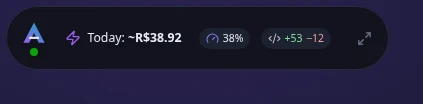
Move and snap
Drag the pill by any empty area. Drop it near a screen edge and it snaps to it; the position is remembered. Ctrl+Shift+P shows or hides the pill.
4. System tray
Left-click the tray icon to open the summary: today’s spend compared with yesterday, agents from the last 2 hours and recent files. The three buttons do:
- Sanitize — finds secrets and personal data in the clipboard text and replaces them with placeholders (e.g.
[REDACTED:ANTHROPIC_KEY]), ready to paste into an AI chat. - Kill Switch — the same emergency button as on the pill.
- Open panel — opens the main window.
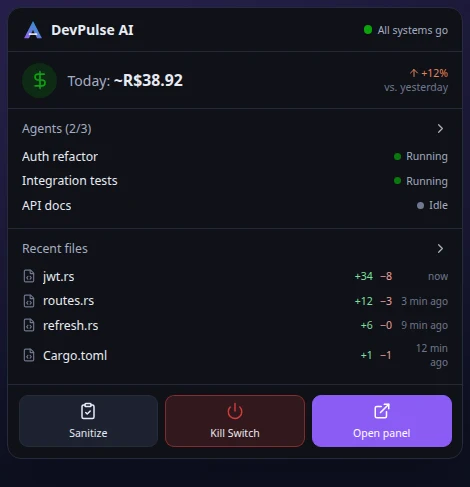
Right-click opens the menu: Open summary, Open panel, Open Diff Inspector, Show/hide mini-pill, About DevPulse AI… and Quit.
5. Main panel
The panel has its own title bar (with the overall status — All systems go —, the notification bell and the account), the side menu with the sections and, at the top of the content, the same bar as the mini-pill.
- Ctrl+1 … Ctrl+9 jump straight to each section, in menu order.
- Ctrl+B collapses the side menu to icons only.
- The dot next to the name shows app health: green, yellow (a degraded source, such as a stale exchange rate) or red. Hover for the reason.
6. Overview
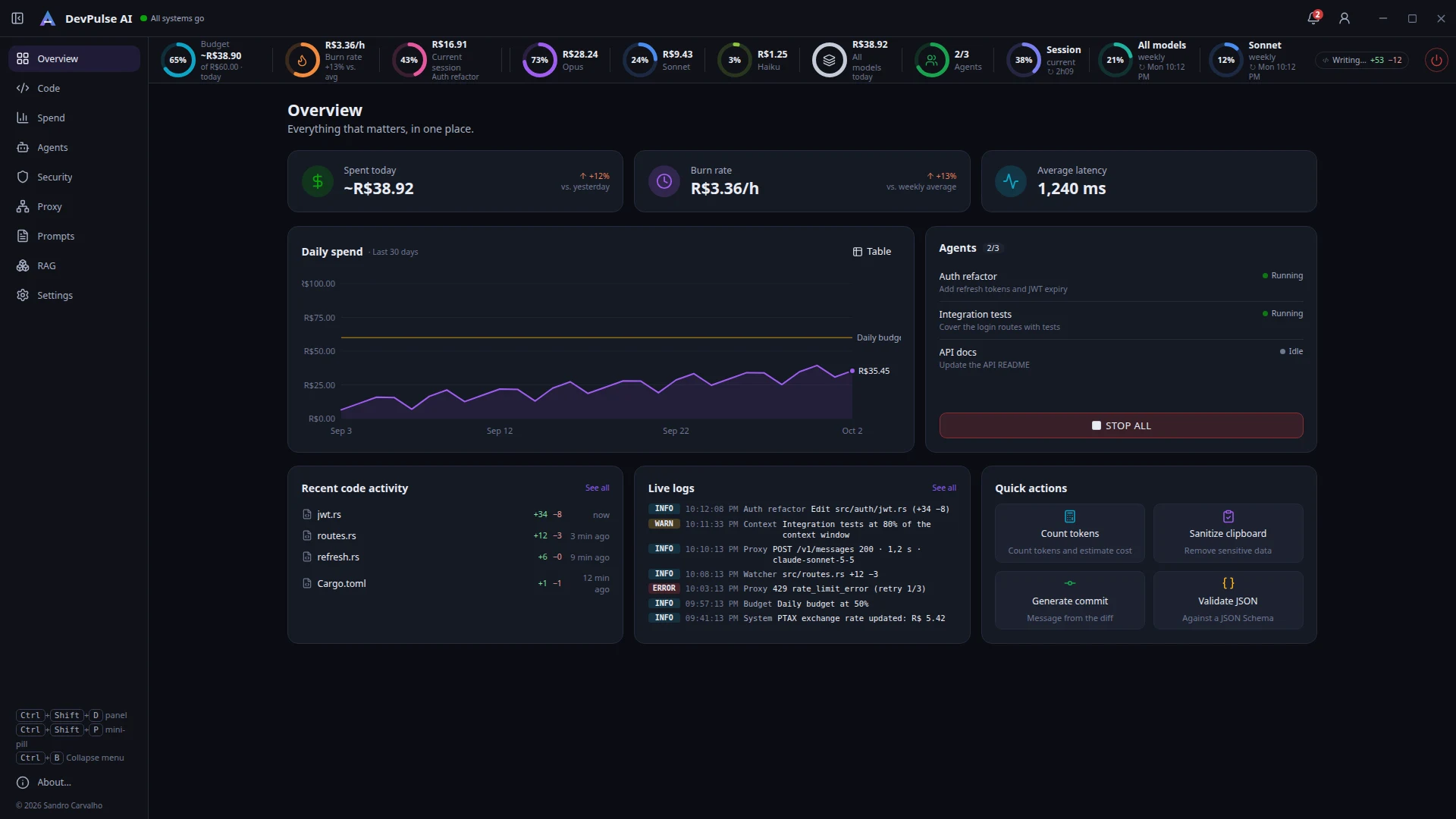
- Spent today, Burn rate and Average latency (of calls through the proxy), with the change against yesterday and against the weekly average. A
~before a value means it is estimated from the price table. - Daily spend — the last 30 days with the daily budget line. The Table button shows the same data as rows.
- Agents — sessions and their states (Running, Idle, Awaiting approval, Paused, Error) and the Stop all button.
- Recent code activity and Live logs — what changed and what happened, with links to the full sections.
- Quick actions — count tokens, sanitize the clipboard, generate a commit message and validate JSON against a schema.
7. Code — Live Code Diff Inspector
The Diff Inspector shows, in real time, every file the agent (or you) changed since the session started.
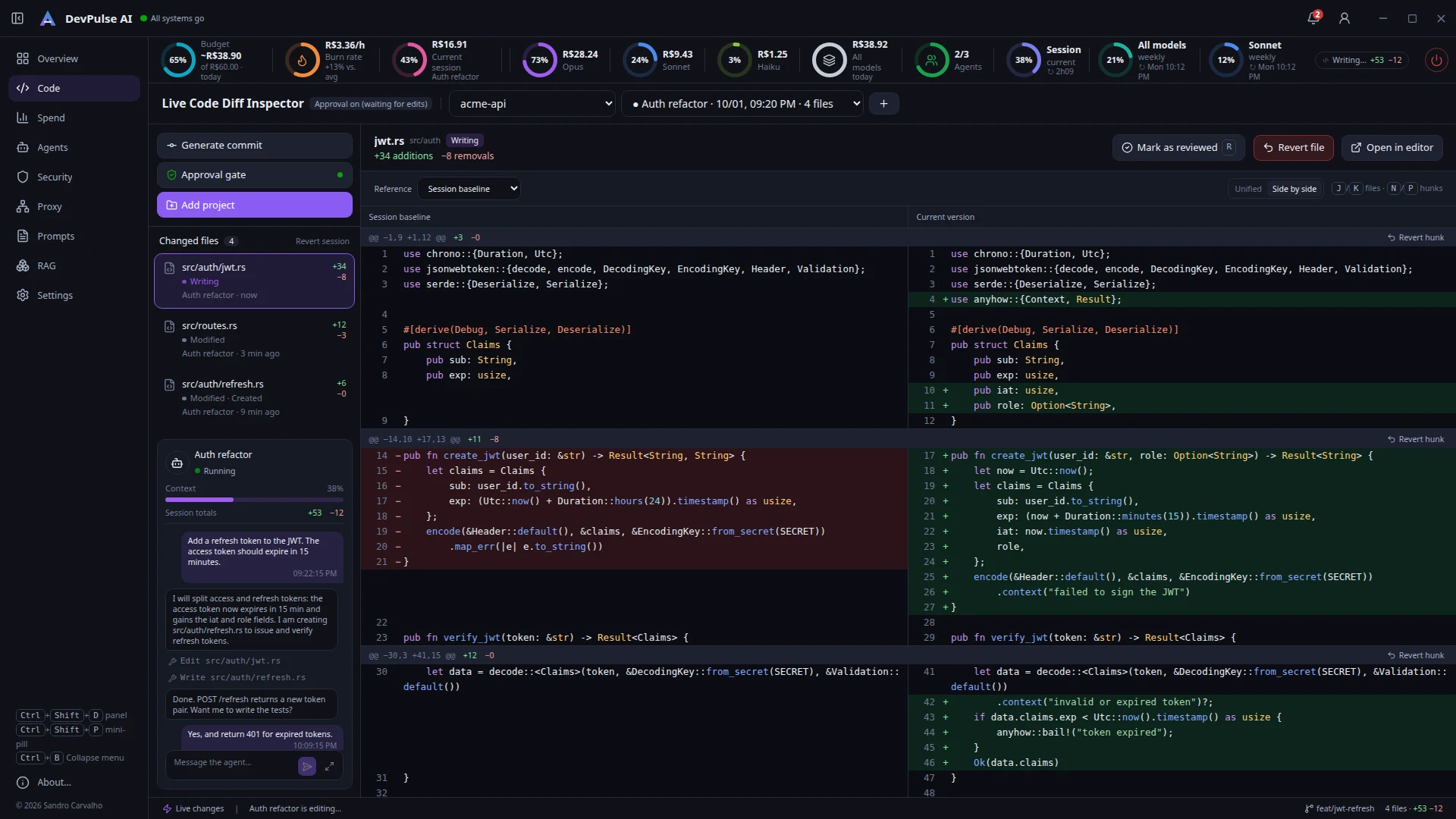
The title row holds the project, the session (● marks a session in progress) and the + button, which starts a manual session — handy to take a fresh “snapshot” before asking the agent for something. A session ends by itself after a few minutes without changes (configurable).
At the top of the sidebar: Generate commit, Approval gate (the green dot means on) and Add project. If the agent is editing the main branch directly, a yellow warning appears.
File list
Each file shows its state — Writing (changed in the last seconds), Modified, Reviewed, Reverted, plus Created and Deleted —, who changed it (the session’s agent or another origin), how long ago and the +/− line totals.
Viewing the diff
- Reference: compare against the session baseline (the file as it was when the session started) or HEAD (the last commit).
- Unified or Split, with syntax highlighting and line numbers for both versions.
- Mark as reviewed (R) to keep track of what you have read.
- Open in editor jumps to the right line using the configured command (e.g.
code --goto {file}:{line}).
Revert
You can undo a hunk (button on each diff block), the whole file or the whole session (link above the list). DevPulse restores the content from the start of the session — changes made before it are kept — and checks the file did not change while you were deciding. Files created in the session are only deleted if you confirm.
Approval gate
With the Claude Code hooks installed and the gate on, every edit the agent proposes stops before being written and shows up in the Awaiting approval queue, with the diff of what will change.
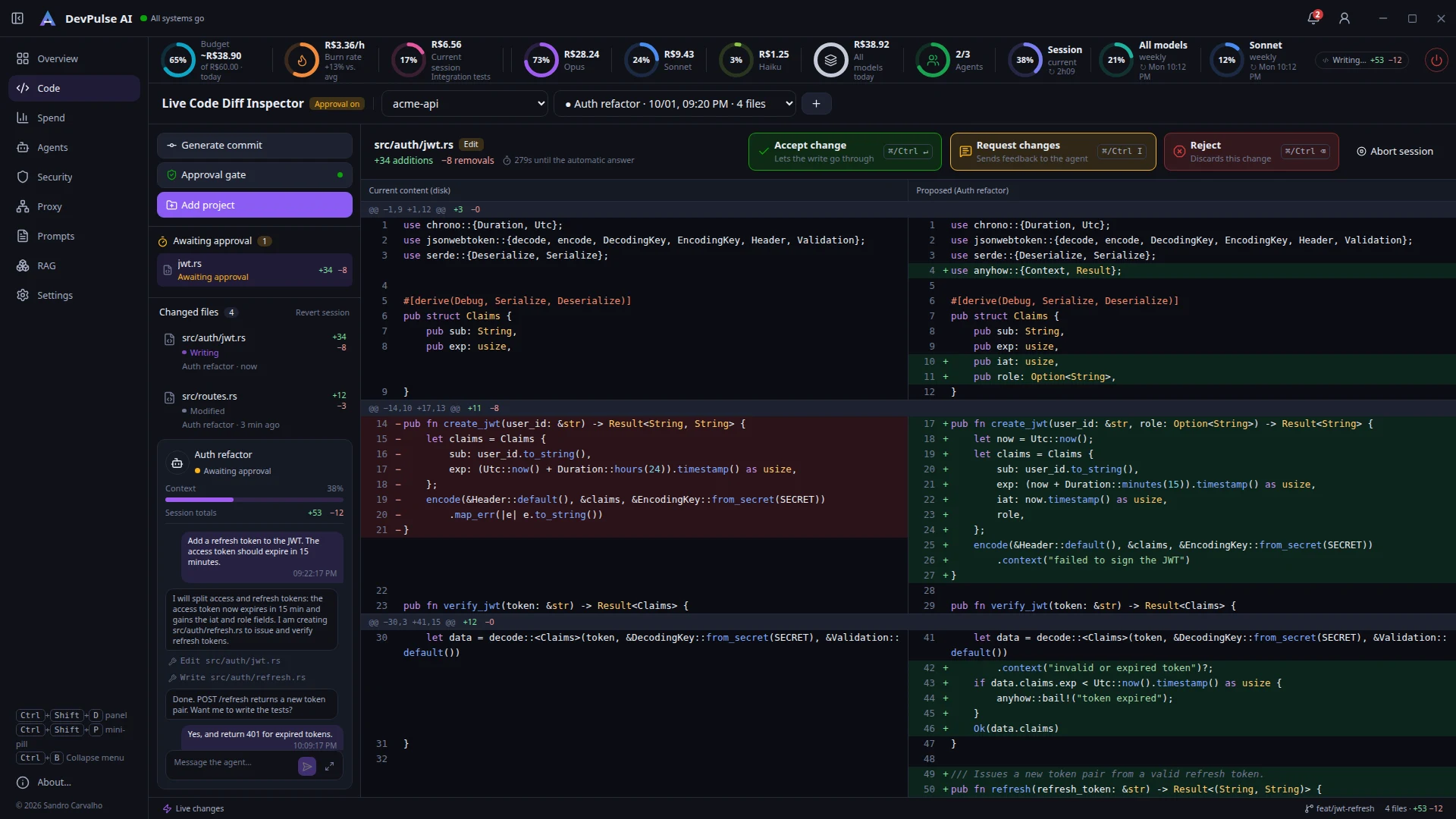
| Action | Shortcut | What happens |
|---|---|---|
| Accept change | Ctrl+Enter | Lets the write through. With several queued, there is also Accept all queued. |
| Request changes | Ctrl+I | Opens a field to say what to change (e.g. “use anyhow instead of unwrap”); the agent gets the comment and tries again. |
| Reject | Ctrl+⌫ | Discards the edit; the agent is told. |
| Abort session | — | Denies and stops the agent until you send a new message. |
If you do not answer within 5 minutes (300 s, configurable), the agent follows its normal flow. If DevPulse is closed, Claude Code also carries on as usual — the hooks never block your work.
Agent chat
The agent card below the list shows the model, context usage, line totals and the session conversation — including what you typed in the terminal. Type in the box and press Enter to send a message to the same session (Shift+Enter adds a line break).
Ctrl+M (or the expand button next to send) opens the conversation in a large box at the bottom, with bigger text. Drag it by its title bar anywhere; double-click recenters it. Ctrl+M or Esc puts it back in the card.
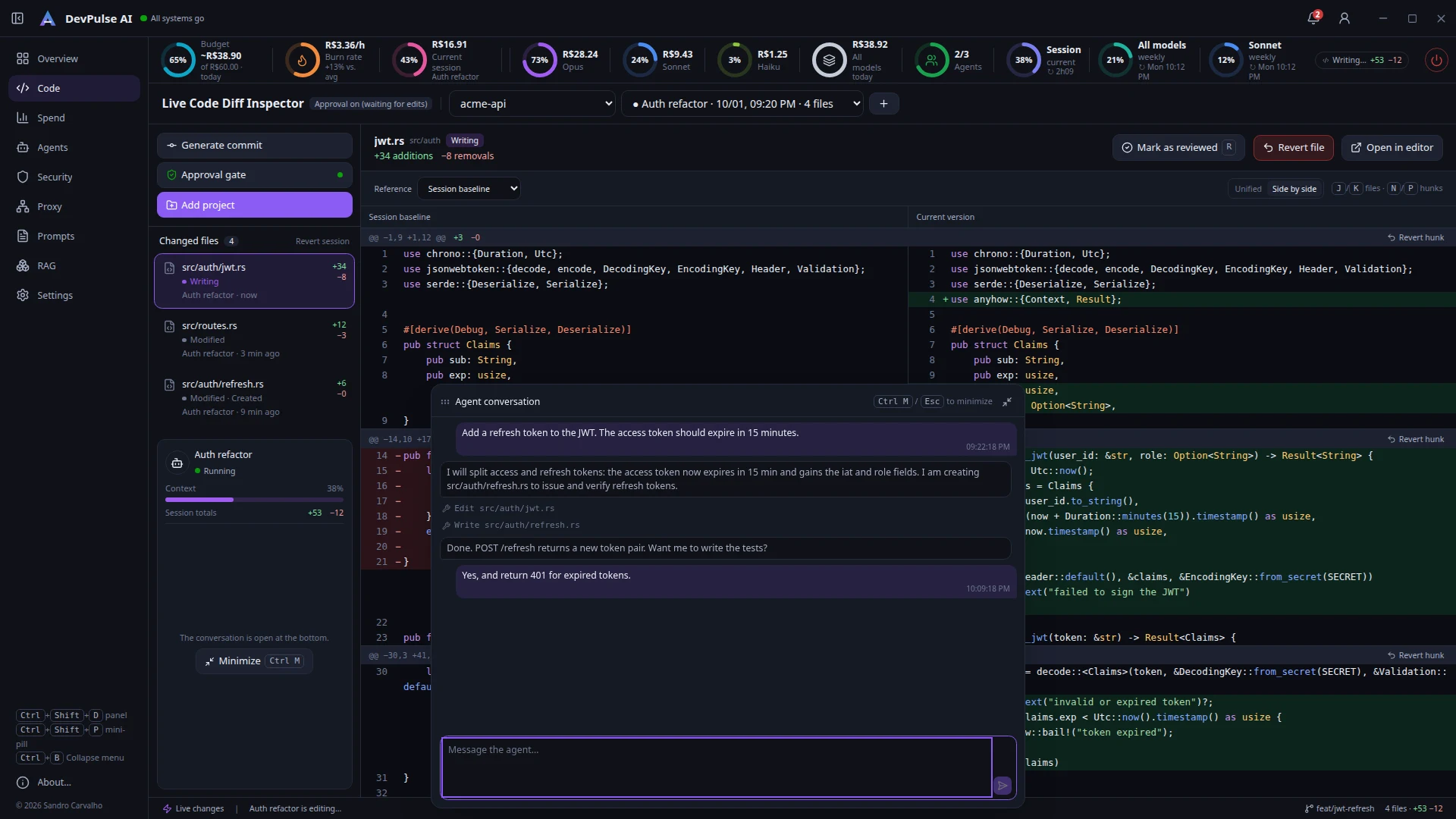
Session open in another terminal? To avoid mixing two histories, DevPulse does not write to a session in use elsewhere and offers a New conversation in this project. Edits requested through the chat are applied directly and show up in the diff.
Generate commit
Builds a message from the diff: it uses what is staged or, if nothing is, the uncommitted changes. The local version follows the configured convention (e.g. Conventional Commits); the AI option sends the diff to Anthropic with your key. Review, edit and confirm to create the commit.
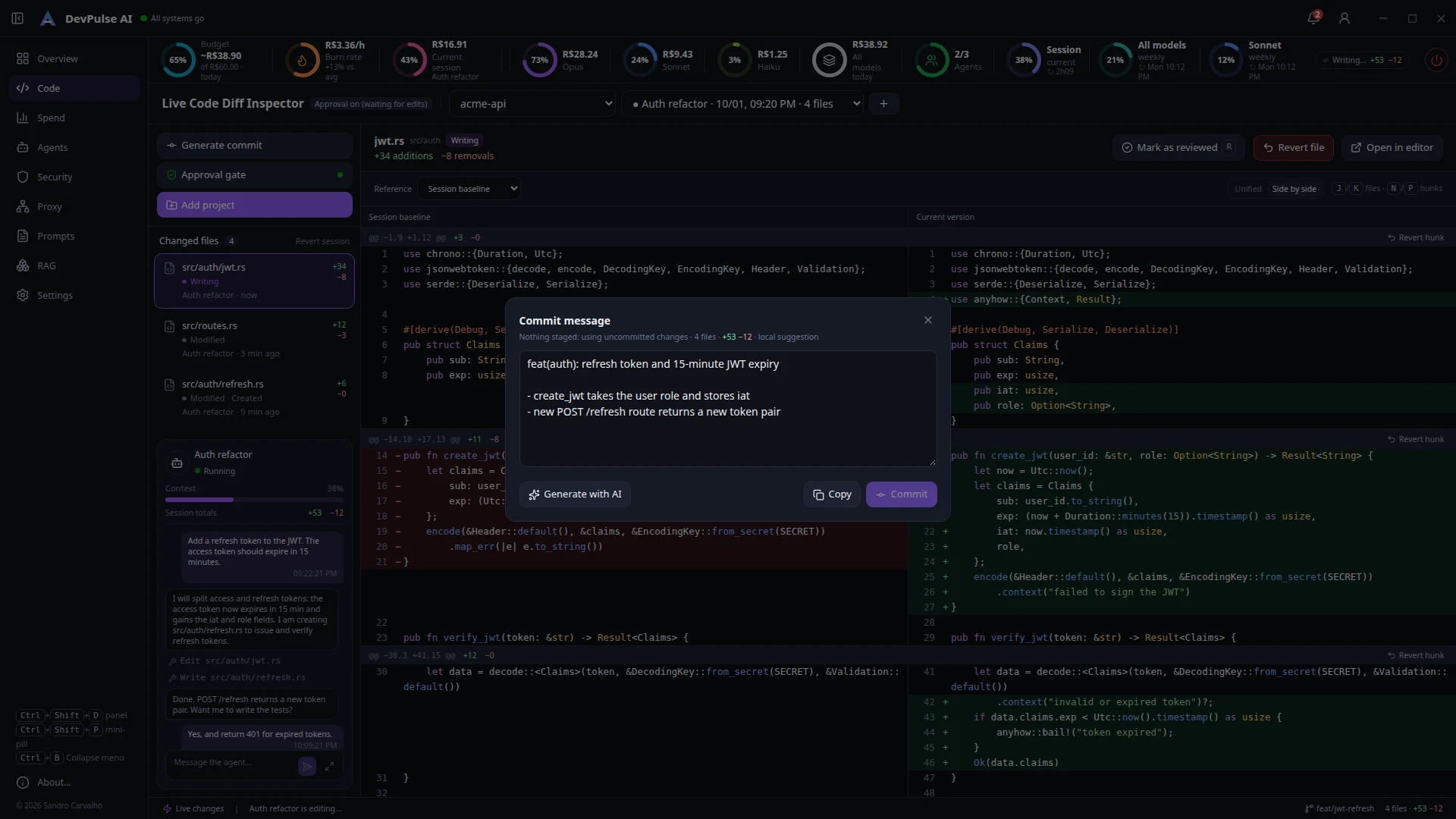
Diff Inspector shortcuts
J/K (or arrows) next/previous file · N/P next/previous hunk · R mark as reviewed.
8. Spend
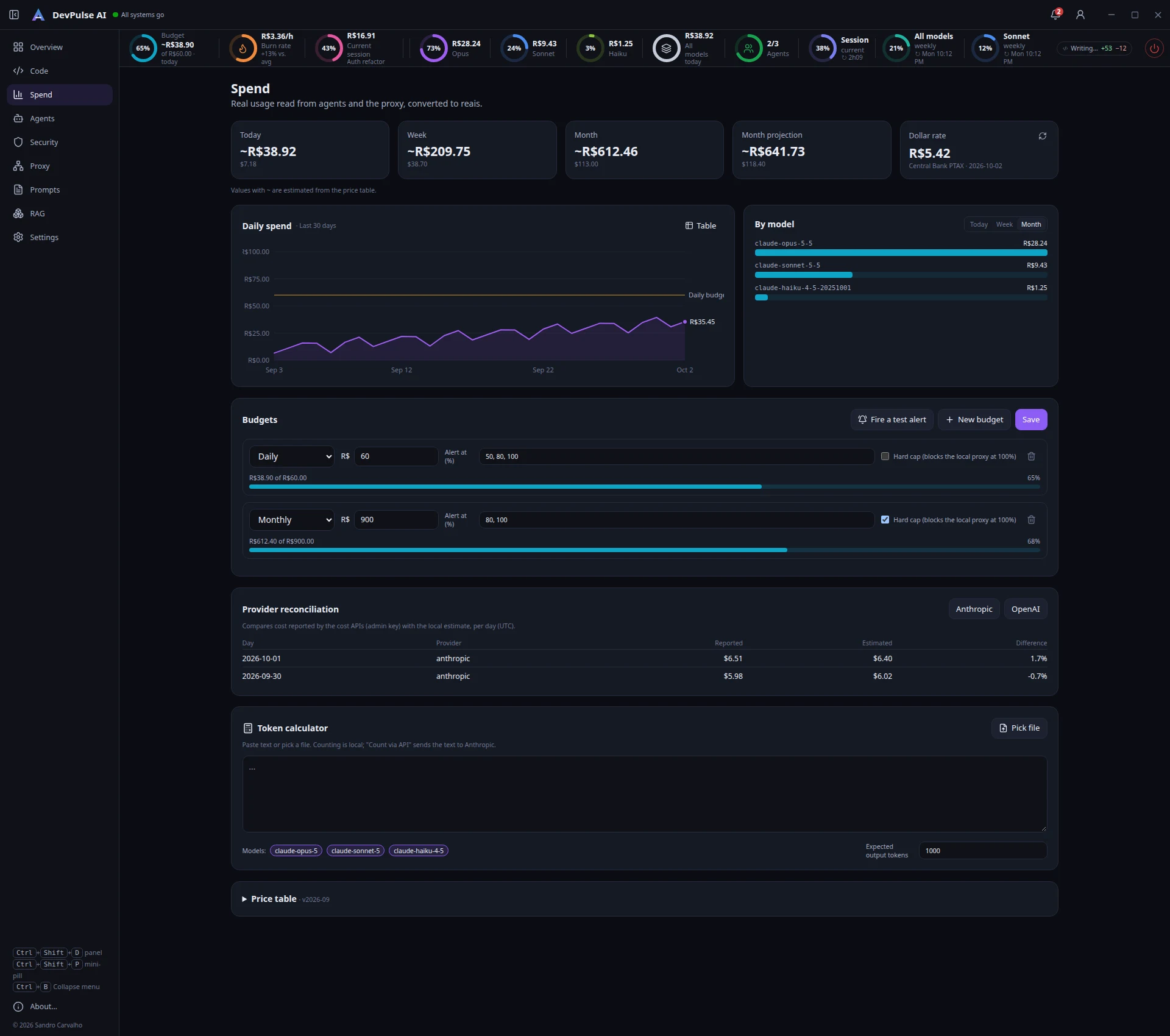
The cards show today, week, month and the month projection, in reais with the dollar value below. Spend comes from agent transcripts (real tokens, cost estimated from the price table) and from calls through the proxy. On subscription plans, the value is the API-equivalent cost — useful to compare models and sessions. By model switches between today, week and month.
Budgets
Create daily, weekly or monthly budgets with alert percentages (e.g. 50, 80, 100). Crossing each one sends a notification. The hard cap makes the local proxy refuse new calls at 100%. Send test alert shows what the warning looks like.
Exchange rate
By default, the Brazilian Central Bank PTAX rate of the day (refreshed with ↻). In Settings → Currency you can use a fixed rate and add card fees (IOF and spread).
Token calculator
Paste text or pick a file to count tokens locally and estimate the cost on each model, with the expected output tokens. Count via API asks Anthropic for the exact count (sends the text).
Price table and reconciliation
The per-model price table ships with the app, shows its version date and can be edited or reset. Reconciliation compares, per day, the local estimate with the cost reported by Anthropic’s cost API — for that, add an admin key in Security.
9. Agents
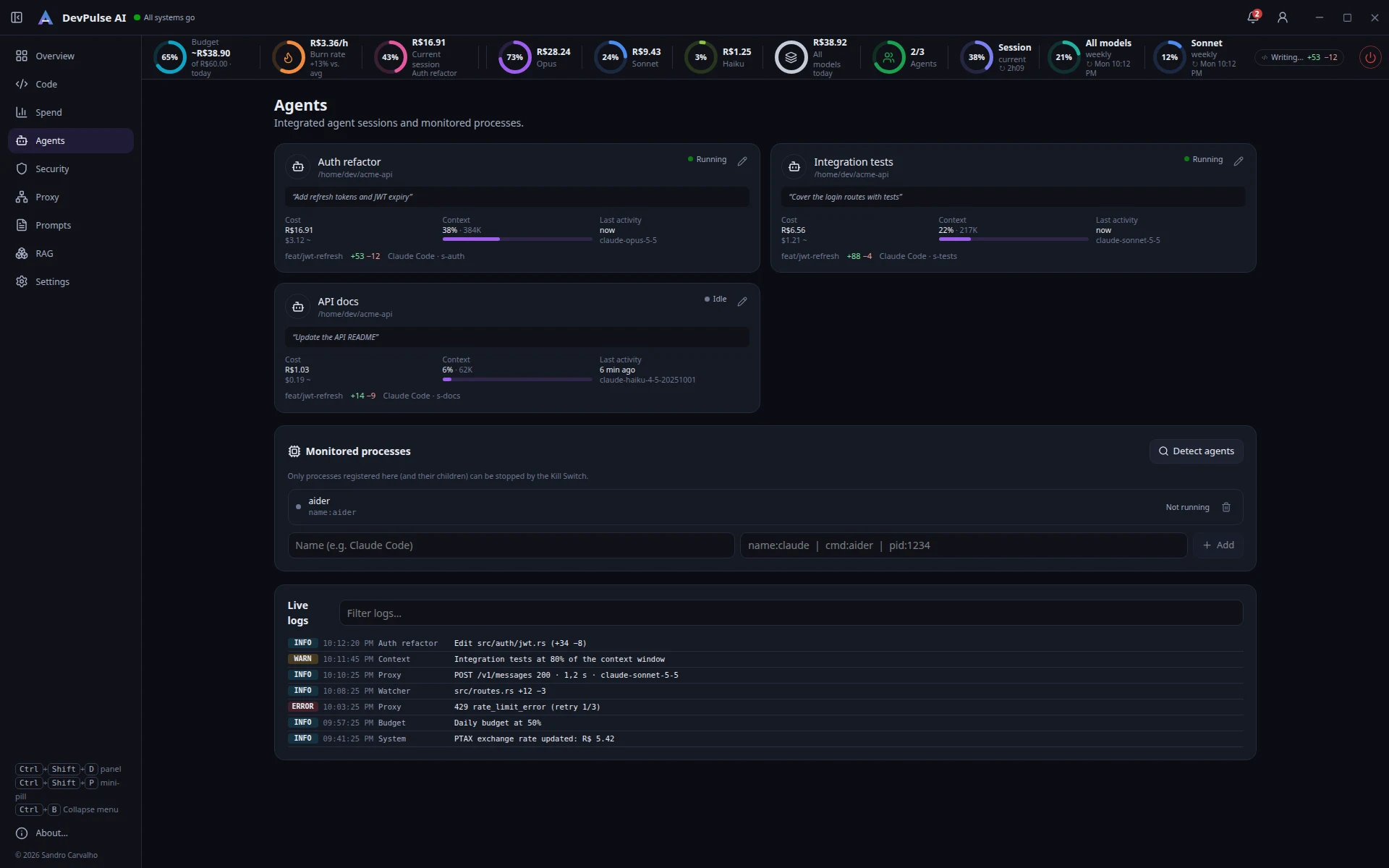
Each Claude Code session becomes a card with the folder, declared intent, cost, context usage (with an alert past 80%, configurable), last activity, model, branch and changed lines. The pencil lets you set a friendly name and description — the name then shows up across the app.
Monitored processes
Register other agents or tools by process name, command line or PID — name:aider, cmd:python agent.py, pid:1234. Detect agents suggests known processes that are running. Only what is registered here (and its child processes) can be stopped by the Kill Switch.
Kill Switch
The red button (on the pill, in the tray and here) asks for confirmation, then stops the registered processes — first politely and, after the configured grace period, forcefully — and interrupts sessions with pending approvals. Emergency mode skips the confirmation.
Live logs
Everything DevPulse logged — edits, proxy, alerts, exchange rate — with a text filter.
10. Security
Credentials
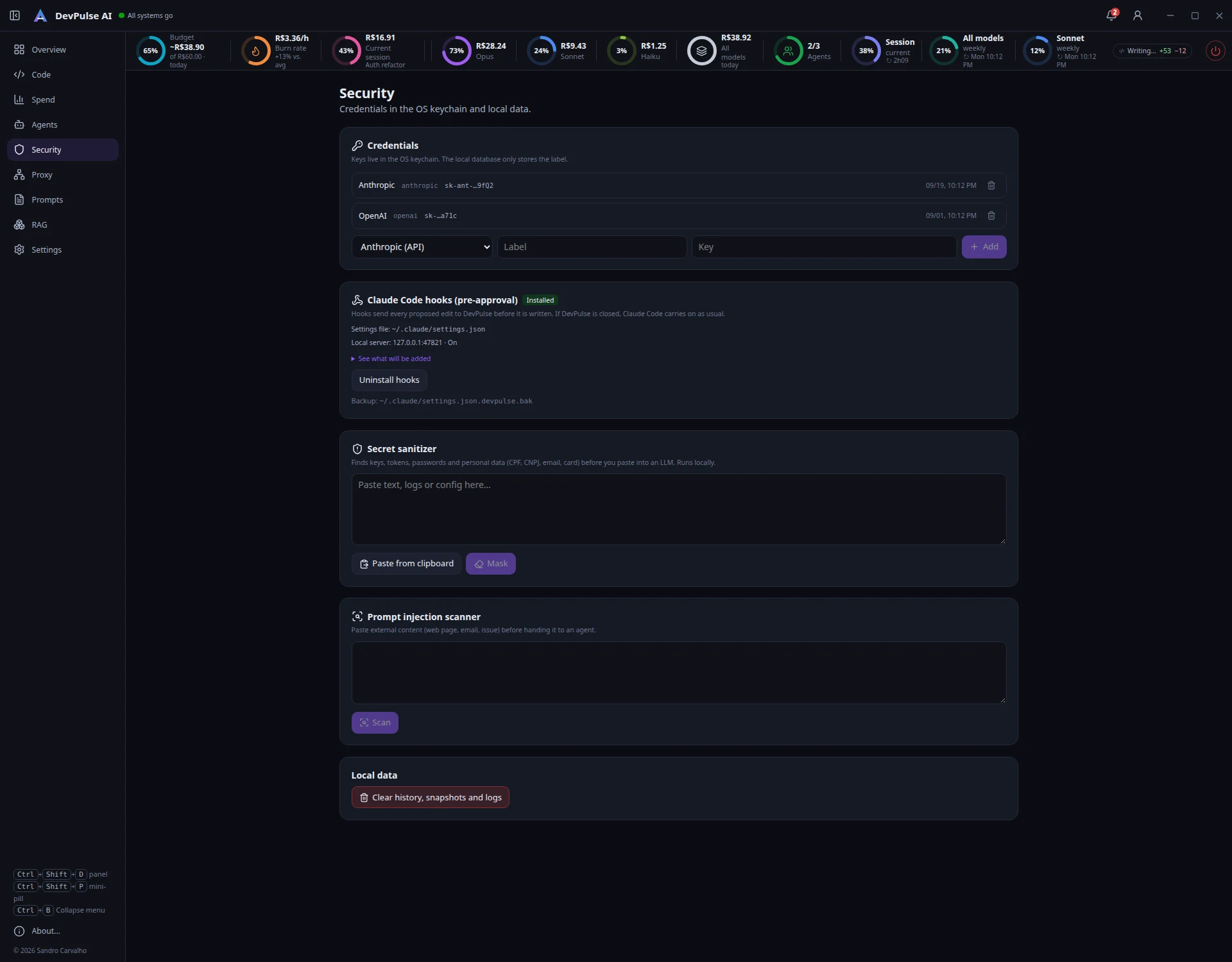
Add the API keys used by AI actions, the proxy and reconciliation (Anthropic, OpenAI, Qdrant…). They are stored in the OS keychain (Windows Credential Manager, Secret Service/GNOME Keyring on Linux); the app database keeps only the label and the key’s last characters.
Claude Code hooks (pre-approval)
Install hooks adds HTTP hooks to ~/.claude/settings.json — you see what will be added first, and a copy of the original file is kept. From then on, new Claude Code sessions ask DevPulse before each edit (see the approval gate). Uninstall hooks removes only what DevPulse added.
Secrets sanitizer and injection detector
The sanitizer finds private keys, keys and tokens (Anthropic, OpenAI, AWS, GitHub, Slack, Google, Stripe, JWT, Bearer), passwords in connection strings and personal data (Brazilian CPF/CNPJ, email, credit card, phone) and replaces them with placeholders such as [REDACTED:EMAIL] before you paste the text into an LLM. The prompt-injection detector scores the risk of a text (e.g. a page or issue the agent will read) and points at the suspicious parts — it is an alert, not a guarantee. Everything runs locally.
Local data
Delete history, snapshots and logs erases sessions, changes, usage, notifications and logs. Credentials and settings are kept.
11. Proxy
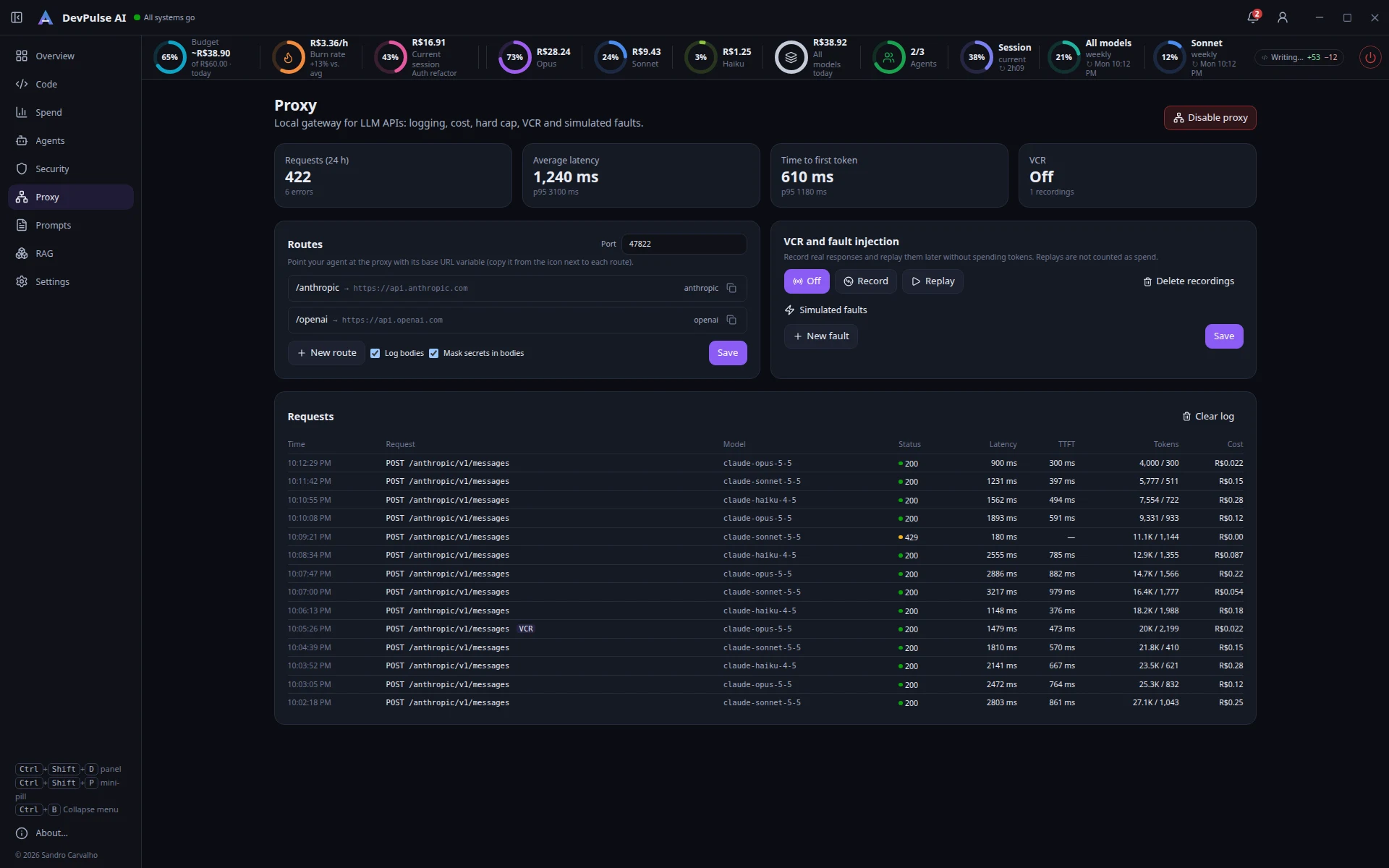
The proxy is a local gateway for LLM APIs. Everything that goes through it is added to spend with the exact cost from the response, and you get latency, time to first token (TTFT) and a log of every call.
Enable it and point the agent
- Click Enable proxy (default port 47822).
- In Routes, click the copy icon next to a route: it copies the ready-made environment variable, for example
export ANTHROPIC_BASE_URL=http://127.0.0.1:47822/anthropic - Paste it in the terminal before starting the agent (or in your
.bashrc/.zshrc). For OpenAI the variable isOPENAI_BASE_URL.
Log bodies keeps request and response for inspection (click a row); Mask secrets runs the sanitizer on them before saving. With a hard-capped budget, the proxy refuses calls once it is exceeded.
VCR and simulated faults
Record saves real responses; Replay returns the recording for the same request, without spending tokens (replays are not counted as spend and are tagged VCR). Great for tests and demos. Simulated faults inject extra latency, rate limits (429), server errors (5xx) or timeouts into a share of calls — to see how your agent behaves when the API fails.
12. Prompts
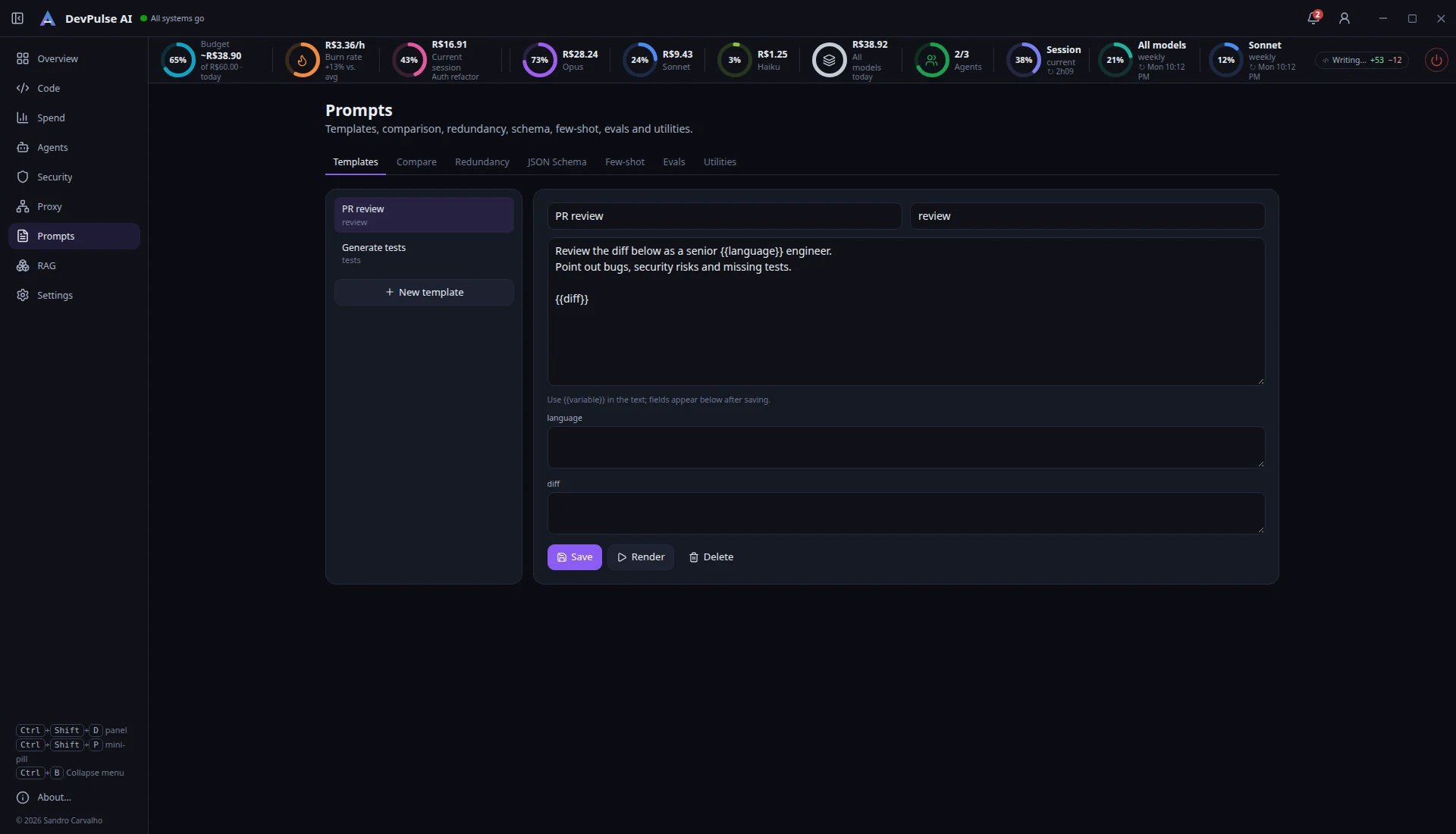
| Tab | What it is for |
|---|---|
| Templates | Reusable prompts with {{name}} variables. On save, each variable becomes a field; Render builds the final text. |
| Compare | Diff between two versions of a prompt, with similarity and the tokens of each. |
| Redundancy | Finds repeated instructions and estimates how many tokens are wasted. |
| JSON Schema | Validates model output against a schema. Paste it as-is: ```json fences and surrounding text are stripped. |
| Few-shot | Build input/output examples — or import the latest proxy interactions — and generate the block as text or JSON messages. |
| Evals | Case suites with expectations (contains, notContains, regex, equals, jsonSchema, maxChars). Evaluate given outputs (offline) or run on the model (spends tokens), with history. |
| Utilities | Project directory tree, context picker (bundles files with secrets masked), JSON to types (TypeScript, Rust and Python) and AI actions: explain an error, generate a regex and document code. |
13. RAG
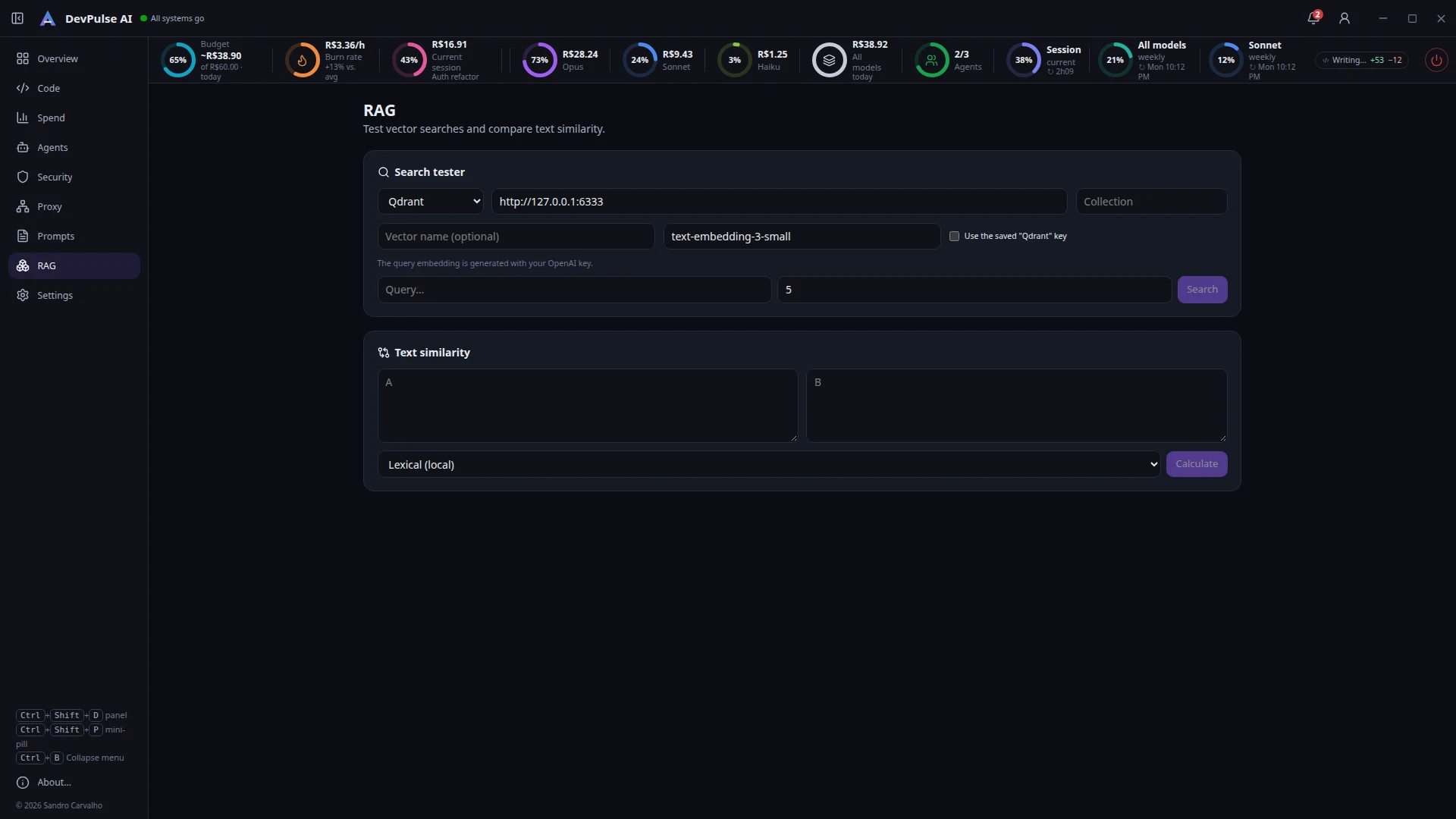
The search tester queries a Qdrant instance (the query embedding is created with your OpenAI key) or any HTTP endpoint with a request body using {{query}} and {{k}}, and shows the returned chunks with their scores. Text similarity compares two passages lexically (local) or with embeddings (cosine).
14. Settings
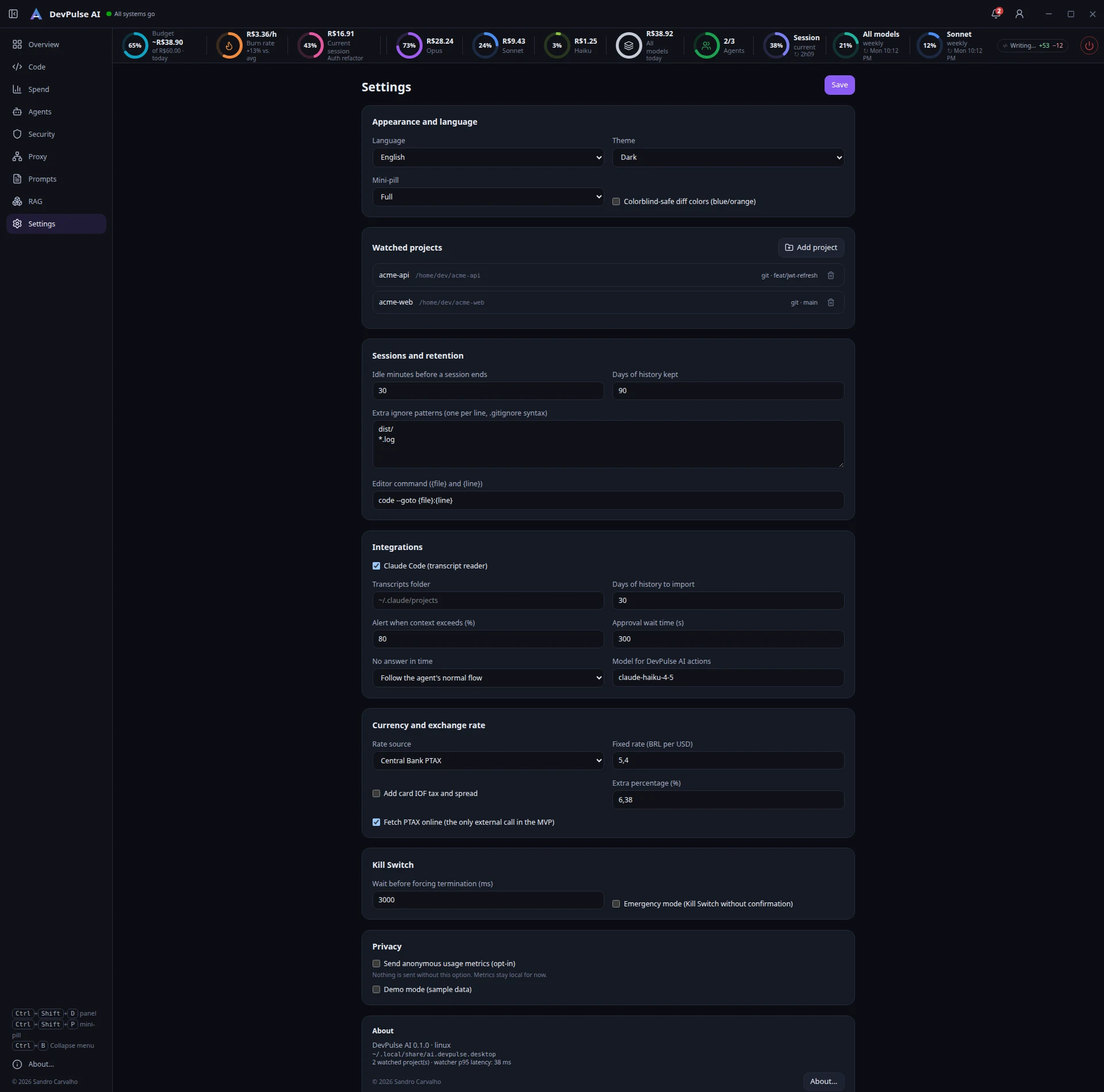
| Group | Options |
|---|---|
| Appearance and language | Portuguese or English, dark or light theme, full or compact mini-pill, colorblind-friendly diff colors (blue/orange). |
| Watched projects | Add folders or stop watching them (history is kept until retention). |
| Sessions and retention | Minutes without changes to end a session, days of history, extra ignore patterns (.gitignore syntax) and the editor command with {file} and {line}. |
| Integrations | Claude Code transcript reading, folder and days to import, context alert, approval wait time, what to do without an answer and the model for AI actions. |
| Currency | PTAX or a fixed rate, card fees and the online PTAX lookup. |
| Kill Switch | Grace period before forcing termination and emergency mode. |
| Privacy | Anonymous metrics (opt-in, off by default) and demo mode with fictitious data. |
| About | Version, platform, data folder and file-watcher stats. |
15. Notifications, account and About
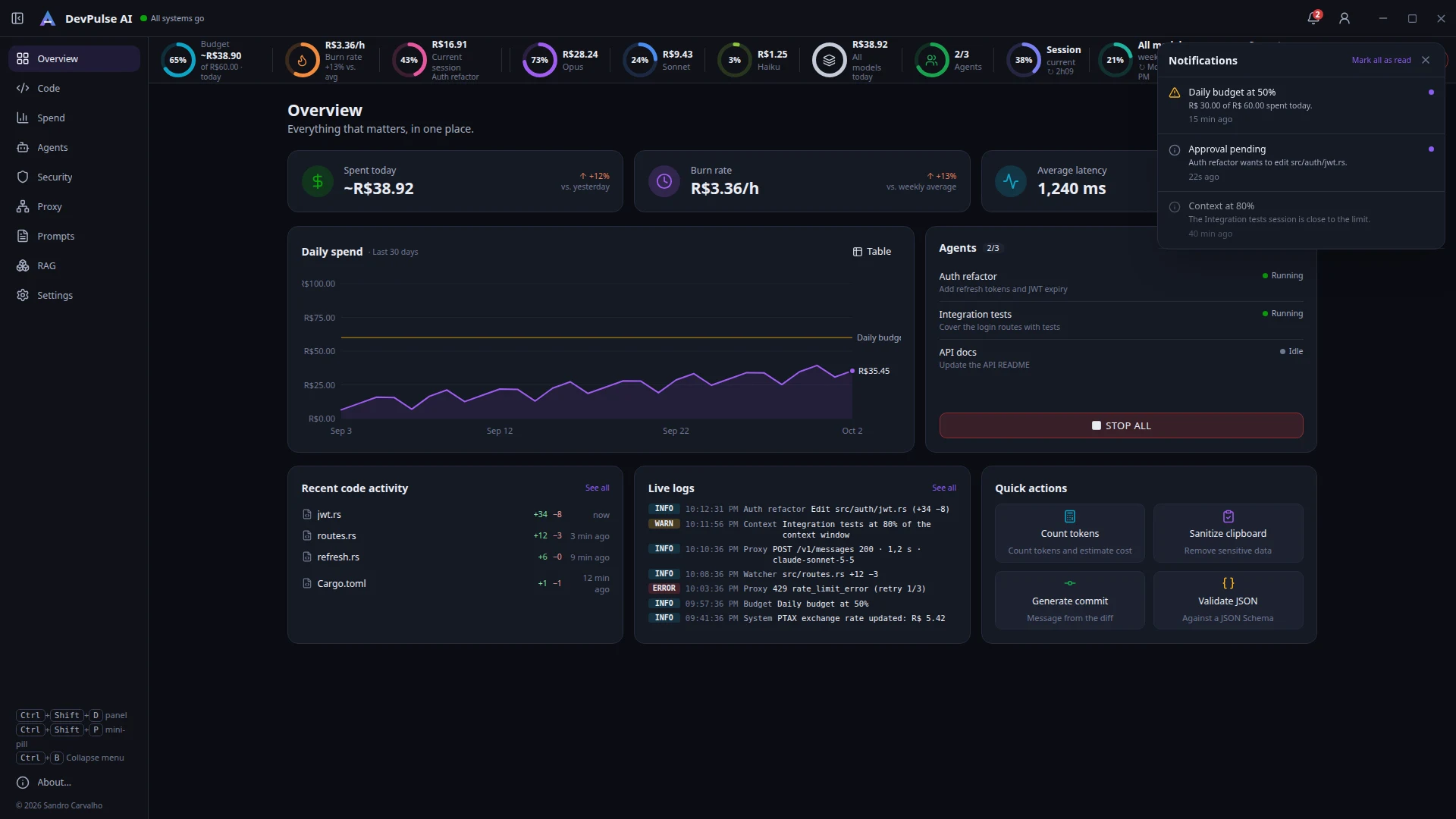
The bell opens the notification center — budgets, pending approvals, high context — with Mark all as read. The important ones also show up as system notifications.
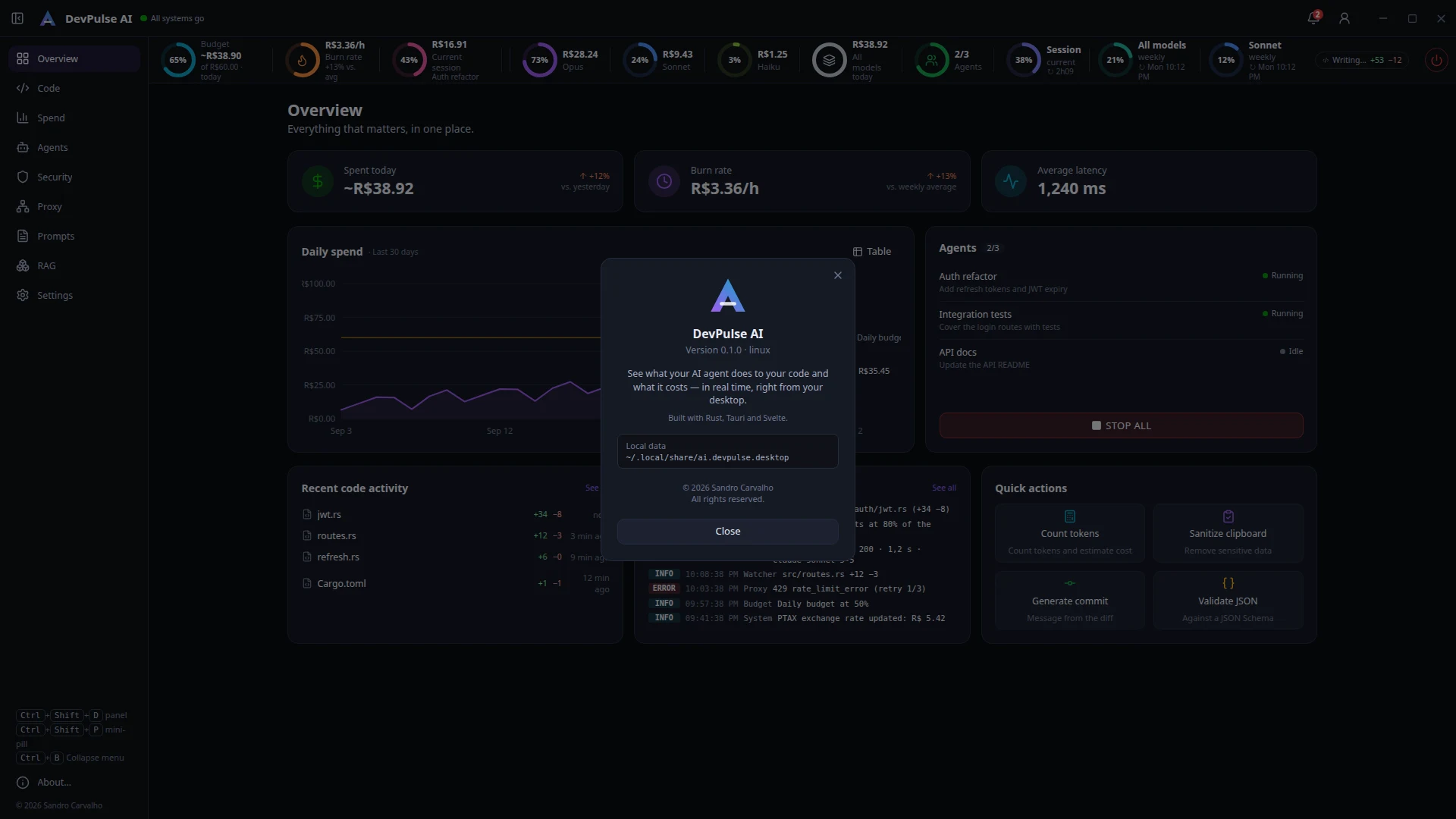
The account icon shows your plan and activates a Pro license with the key you received. The app works fully without logging in. About… (at the bottom of the menu, in the tray or in Settings) shows version, data folder and copyright.
16. Keyboard shortcuts
| Shortcut | Where | Action |
|---|---|---|
| Ctrl+Shift+D | Global | Open or hide the panel |
| Ctrl+Shift+P | Global | Show or hide the mini-pill |
| Ctrl+1…9 | Panel | Go to a section |
| Ctrl+B | Panel | Collapse the side menu |
| J K / N P / R | Code | Files / hunks / mark reviewed |
| Ctrl+Enter · Ctrl+I · Ctrl+⌫ | Approval | Accept · request changes · reject |
| Ctrl+M · Esc | Code | Expand/collapse the chat |
| Enter · Shift+Enter | Chat | Send · line break |
On macOS, use ⌘ instead of Ctrl.
17. Troubleshooting
- The pill does not move and the panel does not open right after installing (Linux/Wayland).
There is probably a system dialog asking permission for the global shortcuts, hidden behind the pill. Use Alt+Tab to find it and answer.
- Global shortcuts do not work.
On Wayland they rely on the desktop portal (GNOME 48+, KDE). On versions without support, use the tray menu. On X11 and Windows they work out of the box.
- No sessions show up in Agents.
Check in Settings → Integrations that Claude Code reading is on and the folder is right (default
~/.claude/projects). Use Claude Code in a project: the session appears within seconds.- Plan limits show “—”.
Hover to see why. Usually the Claude Code login expired: open Claude Code to renew it. API-key-only accounts have no plan limits.
- Values show a “~”.
They are estimates from the price table (real tokens × price). Go through the proxy or use reconciliation to get the cost reported by the provider.
- An edit did not go through the approval gate.
Hooks apply to Claude Code sessions started after installing them, and the gate must be on for the project. Edits made outside the agent only show up in the diff.
Still stuck? See the FAQ or write to suporte@devpulseai.app.br.